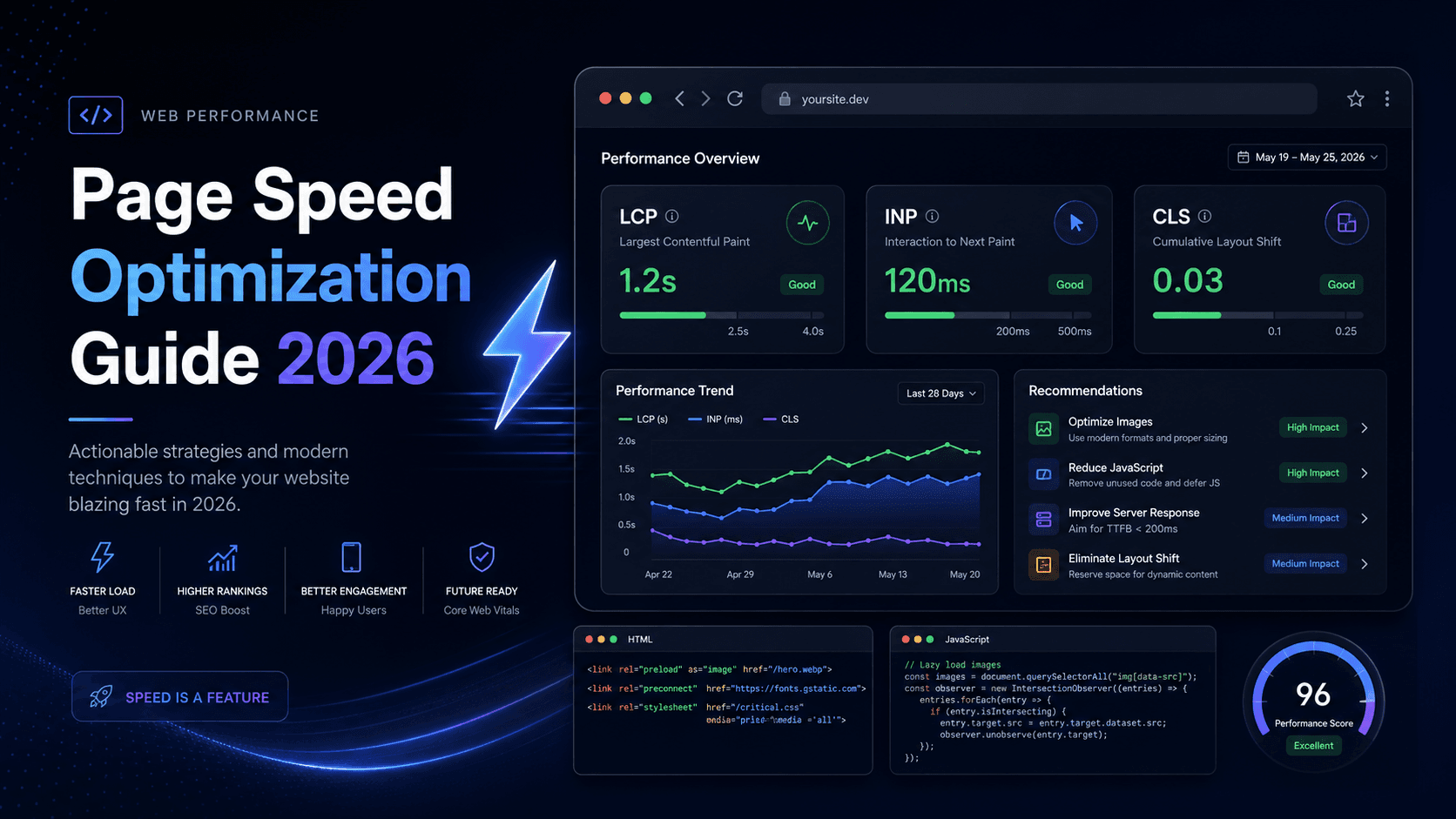
Page Speed Optimization Guide 2026: Improve LCP, INP and CLS
Learn practical page speed optimization techniques for 2026 with Core Web Vitals, image optimization, JavaScript performance, caching, fonts, third-party scripts, and real code examples.
Website speed is not only about getting a good Lighthouse score. In 2026, page speed optimization means improving the real experience of users on real devices, real networks, and real browsers.
A fast website loads important content quickly, reacts instantly when users click or type, avoids layout jumps, keeps JavaScript lightweight, serves optimized images, uses proper caching, and does not block the browser with unnecessary third-party scripts.
In this guide, we will understand page speed optimization from a developer’s point of view with practical code examples.
We will cover:
- Core Web Vitals: LCP, INP and CLS
- How to measure real user performance
- Image optimization
- JavaScript optimization
- CSS and font optimization
- Caching and compression
- Third-party script control
- Next.js examples
- Laravel/server examples
- Final page speed checklist
What Is Page Speed Optimization?
Page speed optimization is the process of reducing the time it takes for a page to become useful, stable and interactive.
A page is not truly fast just because the HTML loads quickly. A good page experience includes:
- The main content appears quickly.
- The page responds quickly to user input.
- The layout does not jump while loading.
- Images, fonts and scripts load efficiently.
- The browser does not waste time downloading unused code.
- Repeat visits feel even faster because of caching.
That is why modern page speed work focuses on user-centric metrics instead of only technical load events.
Core Web Vitals in 2026
Core Web Vitals are the most important performance metrics every website owner and developer should monitor.
The three Core Web Vitals are:
| Metric | Meaning | Good Target |
|---|---|---|
| LCP | Largest Contentful Paint | 2.5 seconds or less |
| INP | Interaction to Next Paint | 200 ms or less |
| CLS | Cumulative Layout Shift | 0.1 or less |
1. LCP: Largest Contentful Paint
LCP measures how quickly the largest important content appears inside the viewport.
Usually, the LCP element is:
- A hero image
- A banner image
- A large heading
- A large paragraph block
- A product image
- A blog article cover image
For a good experience, the user should see the main content quickly.
Common LCP problems:
- Slow server response
- Hero image is too large
- Hero image is lazy-loaded by mistake
- Image is loaded through JavaScript instead of HTML
- Render-blocking CSS
- Too much JavaScript before content is visible
- Slow external fonts
2. INP: Interaction to Next Paint
INP measures how responsive your page feels when the user interacts with it.
It tracks interactions like:
- Clicks
- Taps
- Keyboard input
A poor INP usually means the browser’s main thread is busy. The user clicks a button, but the page cannot respond quickly because JavaScript is still running.
Common INP problems:
- Large JavaScript bundles
- Heavy click handlers
- Expensive React re-renders
- Long-running loops
- Too many third-party scripts
- Large hydration cost in single-page applications
3. CLS: Cumulative Layout Shift
CLS measures visual stability.
A bad CLS happens when content suddenly moves after the user has started reading or clicking.
Common CLS problems:
- Images without width and height
- Ads without reserved space
- Embeds loaded without fixed dimensions
- Web fonts swapping late
- Banners inserted at the top after page load
- Lazy-loaded content pushing existing content down
Step 1: Measure Before Optimizing
Do not optimize blindly. First measure your website with both lab tools and field data.
Use these tools:
- PageSpeed Insights
- Chrome DevTools Performance tab
- Lighthouse
- Search Console Core Web Vitals report
- Real User Monitoring, also called RUM
Lab tools are useful for debugging. Field data is more important because it shows what real users experience.
Add Real User Monitoring with web-vitals
You can collect Core Web Vitals directly from users using the web-vitals package.
npm install web-vitals
Create a small vitals tracking file:
// lib/reportWebVitals.ts
import { onCLS, onINP, onLCP, onTTFB } from 'web-vitals';

type WebVitalMetric = {
  name: string;
  value: number;
  rating: 'good' | 'needs-improvement' | 'poor';
  id: string;
};

function sendToAnalytics(metric: WebVitalMetric) {
  const body = JSON.stringify({
    name: metric.name,
    value: metric.value,
    rating: metric.rating,
    id: metric.id,
    url: window.location.href,
    userAgent: navigator.userAgent,
    createdAt: new Date().toISOString(),
  });

  if (navigator.sendBeacon) {
    navigator.sendBeacon('/api/web-vitals', body);
    return;
  }

  fetch('/api/web-vitals', {
    method: 'POST',
    body,
    headers: {
      'Content-Type': 'application/json',
    },
    keepalive: true,
  });
}

export function reportWebVitals() {
  onLCP(sendToAnalytics);
  onINP(sendToAnalytics);
  onCLS(sendToAnalytics);
  onTTFB(sendToAnalytics);
}
Then load it on the client side:
// app/performance-client.ts
'use client';

import { useEffect } from 'react';
import { reportWebVitals } from '@/lib/reportWebVitals';

export function PerformanceClient() {
  useEffect(() => {
    reportWebVitals();
  }, []);

  return null;
}
Now include it in your layout:
// app/layout.tsx
import { PerformanceClient } from './performance-client';

export default function RootLayout({ children }: { children: React.ReactNode }) {
  return (
    <html lang="en">
      <body>
        {children}
        <PerformanceClient />
      </body>
    </html>
  );
}
This gives you real performance data from real users instead of only local machine test results.
Step 2: Optimize LCP
LCP is usually the first big performance issue on websites.
To improve LCP, focus on the main content that appears above the fold.
Use Server-Side Rendering or Static Rendering for Important Content
The browser should receive meaningful HTML as early as possible.
Avoid this for important above-the-fold content:
'use client';

import { useEffect, useState } from 'react';

export default function Hero() {
  const [title, setTitle] = useState('');

  useEffect(() => {
    fetch('/api/home')
      .then((res) => res.json())
      .then((data) => setTitle(data.title));
  }, []);

  return <h1>{title || 'Loading...'}</h1>;
}
Better approach:
// Server Component
export default async function Hero() {
  const data = await getHomePageData();

  return (
    <section className="hero">
      <h1>{data.title}</h1>
      <p>{data.description}</p>
    </section>
  );
}
The second version sends real content in the first HTML response, which helps the browser render the main content faster.
Do Not Lazy Load the LCP Image
A common mistake is applying loading="lazy" to the hero image. The hero image is usually needed immediately, so lazy loading delays it.
Bad:
<img
  src="/images/hero.webp"
  alt="Fast website dashboard"
  loading="lazy"
/>
Better:
<img
  src="/images/hero.webp"
  alt="Fast website dashboard"
  width="1200"
  height="630"
  loading="eager"
  fetchpriority="high"
  decoding="async"
/>
Next.js Image Example for Hero Image
For Next.js, use the Image component with fixed dimensions and preload for the main image.
import Image from 'next/image';

export default function HeroBanner() {
  return (
    <Image
      src="/images/page-speed-optimization.webp"
      alt="Page speed optimization dashboard"
      width={1200}
      height={630}
      sizes="(max-width: 768px) 100vw, 1200px"
      preload
      loading="eager"
    />
  );
}
Use this only for the important above-the-fold image. Do not preload every image.
Step 3: Optimize Images
Images are often the biggest reason for slow pages.
Use modern image formats:
- AVIF for best compression where supported
- WebP as a safe modern default
- PNG only when transparency or exact quality is required
- SVG for icons and simple illustrations
- JPEG for photos when AVIF/WebP is not available
Use Responsive Images
Do not send a 2400px image to a 390px mobile screen.
<img
  src="/images/blog-800.webp"
  srcset="
    /images/blog-400.webp 400w,
    /images/blog-800.webp 800w,
    /images/blog-1200.webp 1200w
  "
  sizes="(max-width: 600px) 100vw, 800px"
  width="800"
  height="450"
  alt="Website performance dashboard"
  loading="lazy"
  decoding="async"
/>
Lazy Load Below-the-Fold Images
Images below the first screen should be lazy-loaded.
<img
  src="/images/article-example.webp"
  alt="Article performance example"
  width="800"
  height="450"
  loading="lazy"
  decoding="async"
/>
Always Add Width and Height
This prevents layout shift.
Bad:
<img src="/images/product.webp" alt="Product image" />
Good:
<img
  src="/images/product.webp"
  alt="Product image"
  width="600"
  height="600"
/>
Step 4: Reduce JavaScript
JavaScript is one of the biggest reasons for poor INP.
The browser must download, parse, compile and execute JavaScript. If you ship too much JavaScript, users on low-end mobile devices will feel the delay.
Split Heavy Components
Do not load heavy components on the initial page if they are not immediately needed.
import dynamic from 'next/dynamic';

const ChartWidget = dynamic(() => import('@/components/ChartWidget'), {
  ssr: false,
  loading: () => <p>Loading chart...</p>,
});

export default function DashboardPage() {
  return (
    <main>
      <h1>Dashboard</h1>
      <ChartWidget />
    </main>
  );
}
Use this for:
- Charts
- Maps
- Editors
- Analytics panels
- Chat widgets
- Video players
- Large admin components
Break Long Tasks
If JavaScript blocks the main thread for too long, user interactions become slow.
Bad:
function processItems(items: Item[]) {
  for (const item of items) {
    heavyCalculation(item);
  }
}
Better:
async function processItems(items: Item[]) {
  for (const item of items) {
    heavyCalculation(item);

    // Give the browser a chance to handle input and paint.
    await new Promise((resolve) => setTimeout(resolve, 0));
  }
}
A more modern pattern is to use scheduler.yield() where supported:
async function yieldToBrowser() {
  if ('scheduler' in window && 'yield' in scheduler) {
    await scheduler.yield();
    return;
  }

  await new Promise((resolve) => setTimeout(resolve, 0));
}

async function processLargeList(items: Item[]) {
  for (const item of items) {
    heavyCalculation(item);
    await yieldToBrowser();
  }
}
Avoid Unnecessary React Re-renders
Bad:
export default function ProductList({ products }) {
  const filtered = products.filter((product) => product.active);

  return (
    <div>
      {filtered.map((product) => (
        <ProductCard key={product.id} product={product} />
      ))}
    </div>
  );
}
Better:
import { useMemo } from 'react';

export default function ProductList({ products }) {
  const filtered = useMemo(() => {
    return products.filter((product) => product.active);
  }, [products]);

  return (
    <div>
      {filtered.map((product) => (
        <ProductCard key={product.id} product={product} />
      ))}
    </div>
  );
}
Also check:
- Avoid passing new objects inline repeatedly.
- Avoid unnecessary global state updates.
- Keep client components small.
- Use server components where possible.
- Do not hydrate static content unnecessarily.
Step 5: Optimize CSS
CSS can block rendering. If CSS is large or complex, the browser takes longer to render the page.
Remove Unused CSS
For Tailwind CSS, make sure your content paths are correct:
// tailwind.config.ts
export default {
  content: [
    './app/**/*.{js,ts,jsx,tsx,mdx}',
    './components/**/*.{js,ts,jsx,tsx,mdx}',
    './content/**/*.{md,mdx}',
  ],
  theme: {
    extend: {},
  },
  plugins: [],
};
Use content-visibility for Below-the-Fold Sections
This helps the browser skip rendering work for sections that are not visible yet.
.below-fold-section {
  content-visibility: auto;
  contain-intrinsic-size: 800px;
}
Example:
<section className="below-fold-section">
  <h2>Related Articles</h2>
  <ArticleGrid />
</section>
Do not use this on above-the-fold content.
Step 6: Optimize Fonts
Fonts can delay text rendering and cause layout shift.
Best practices:
- Use
font-display: swap - Use WOFF2 fonts
- Self-host important fonts when possible
- Preload only the main above-the-fold font
- Avoid loading too many font weights
Example:
@font-face {
  font-family: 'Inter';
  src: url('/fonts/inter-latin-400.woff2') format('woff2');
  font-weight: 400;
  font-style: normal;
  font-display: swap;
}

@font-face {
  font-family: 'Inter';
  src: url('/fonts/inter-latin-700.woff2') format('woff2');
  font-weight: 700;
  font-style: normal;
  font-display: swap;
}
Preload only the most important font:
<link
  rel="preload"
  href="/fonts/inter-latin-400.woff2"
  as="font"
  type="font/woff2"
  crossorigin
/>
Do not preload every font file. Too many preloads can slow down more important resources.
Step 7: Control Third-Party Scripts
Third-party scripts can destroy page speed.
Examples:
- Chat widgets
- Heatmaps
- Analytics
- Ads
- Tracking pixels
- Social embeds
- A/B testing tools
Before adding any third-party script, ask:
- Is it required on every page?
- Can it load after interaction?
- Can it load after page idle?
- Can it be removed from mobile?
- Can it be loaded only on specific pages?
Basic Script Loading
Bad:
<script src="https://example.com/widget.js"></script>
Better:
<script
  src="https://example.com/widget.js"
  defer
></script>
For analytics:
<script
  async
  src="https://www.googletagmanager.com/gtag/js?id=G-XXXXXXX"
></script>
Next.js Script Example
import Script from 'next/script';

export function AnalyticsScript() {
  return (
    <Script
      src="https://www.googletagmanager.com/gtag/js?id=G-XXXXXXX"
      strategy="afterInteractive"
    />
  );
}
For low-priority scripts:
import Script from 'next/script';

export function LowPriorityScript() {
  return (
    <Script
      src="https://example.com/marketing-widget.js"
      strategy="lazyOnload"
    />
  );
}
Use lazyOnload for scripts that are not required immediately.
Step 8: Use Proper Caching
Caching makes repeat visits faster and reduces server load.
Static Assets
Static assets with hashed filenames can be cached for a long time.
Example:
Cache-Control: public, max-age=31536000, immutable
Use it for:
- CSS files
- JavaScript bundles
- Images
- Fonts
Only use long cache duration when file names change after updates, such as:
app.a8f3d2.js
styles.91ab7.css
hero.82cd1.webp
HTML Pages
HTML should usually have a shorter cache duration because content can change.
Example:
Cache-Control: public, max-age=60, stale-while-revalidate=300
This allows the cache to serve a slightly stale page while refreshing it in the background.
Nginx Static Asset Cache Example
location ~* \.(?:js|css|png|jpg|jpeg|gif|svg|webp|avif|woff2)$ {
    expires 1y;
    add_header Cache-Control "public, max-age=31536000, immutable";
    access_log off;
}
Step 9: Enable Compression
Compression reduces transfer size.
Use:
- Brotli for modern browsers
- Gzip as fallback
- Zstandard if your CDN supports it
For most websites, enable compression at the CDN level.
Common compressible files:
- HTML
- CSS
- JavaScript
- JSON
- SVG
- XML
Do not waste time compressing already compressed files like:
- JPG
- PNG
- WebP
- AVIF
- MP4
- ZIP
Step 10: Improve Server Response Time
A slow server response increases every important loading metric.
Common fixes:
- Use a CDN
- Cache full pages where possible
- Cache database queries
- Remove slow middleware
- Optimize database indexes
- Avoid unnecessary API calls during page render
- Use server-side pagination
- Use background jobs for heavy work
Laravel Production Optimization
For Laravel apps, run production optimization commands during deployment:
composer install --no-dev --optimize-autoloader

php artisan config:cache
php artisan route:cache
php artisan view:cache
php artisan event:cache
php artisan optimize

npm ci
npm run build
Use Redis or another fast cache store for repeated expensive data:
use Illuminate\Support\Facades\Cache;

$posts = Cache::remember('home:latest-posts', now()->addMinutes(10), function () {
    return Post::query()
        ->where('published', true)
        ->latest()
        ->take(10)
        ->get();
});
For frequently changing data, use a shorter cache duration.
Step 11: Keep Pages Eligible for Back/Forward Cache
The back/forward cache, also called bfcache, can make browser back and forward navigation feel instant.
Avoid this:
window.addEventListener('unload', () => {
  sendAnalytics();
});
Use this instead:
document.addEventListener('visibilitychange', () => {
  if (document.visibilityState === 'hidden') {
    navigator.sendBeacon('/analytics', JSON.stringify({
      event: 'page_hidden',
      url: location.href,
    }));
  }
});
Also avoid unnecessary Cache-Control: no-store on normal public pages. Use no-store only for sensitive pages like account, billing, checkout or admin screens.
Step 12: Add a Performance Budget
A performance budget prevents your website from becoming slow again after future updates.
Example budget:
{
  "performanceBudget": {
    "javascript": "180kb",
    "css": "60kb",
    "image": "500kb",
    "lcp": "2500ms",
    "inp": "200ms",
    "cls": "0.1"
  }
}
Recommended starting targets:
| Resource | Target |
|---|---|
| JavaScript on article pages | Less than 150-200 KB compressed |
| CSS | Less than 50-70 KB compressed |
| Hero image | Less than 150 KB if possible |
| Total image weight above fold | Less than 300 KB |
| Third-party scripts | As few as possible |
| LCP | Less than 2.5 seconds |
| INP | Less than 200 ms |
| CLS | Less than 0.1 |
These are not strict rules for every project, but they give your team a clear limit.
Page Speed Checklist for 2026
Use this checklist before publishing any page.
LCP Checklist
- Main content is server-rendered or statically rendered.
- Hero image is not lazy-loaded.
- Hero image has width and height.
- Hero image uses WebP or AVIF.
- Important image has high priority or preload.
- Server response time is optimized.
- Critical CSS is not too large.
- Fonts do not block rendering.
INP Checklist
- JavaScript bundle is not too large.
- Heavy components are dynamically imported.
- Expensive click handlers are optimized.
- Long tasks are broken into smaller tasks.
- Unnecessary React re-renders are removed.
- Third-party scripts are delayed.
- Client components are used only where needed.
CLS Checklist
- All images have width and height.
- Ads and embeds have reserved space.
- Fonts use
font-display: swap. - Banners are not injected above existing content.
- Lazy-loaded content does not push visible content.
- Skeleton loaders match final layout size.
Caching Checklist
- Static assets use long-term cache.
- HTML uses sensible short cache.
- CDN is enabled.
- Brotli or Gzip compression is enabled.
- API responses are cached where safe.
- Database queries are optimized.
Common Page Speed Mistakes
Mistake 1: Chasing 100 Lighthouse Score Only
A 100 Lighthouse score is nice, but it is not the final goal. Real user experience matters more.
Focus on:
- Real mobile users
- Slow networks
- Low-end devices
- Actual user interactions
- Search Console data
- RUM data
Mistake 2: Lazy Loading Everything
Lazy loading is useful, but not for everything.
Do not lazy load:
- Hero image
- Main heading
- Critical CSS
- Important fonts
- Above-the-fold content
Lazy load:
- Below-the-fold images
- Videos
- Maps
- Comments
- Related posts
- Chat widgets
- Social embeds
Mistake 3: Adding Too Many Third-Party Tools
Every script has a cost.
Before adding a new tool, check its impact in the Network and Performance tabs.
A single bad third-party script can block the main thread and damage INP.
Mistake 4: Ignoring Mobile
Most performance problems appear clearly on mobile.
Always test with:
- Mobile viewport
- Network throttling
- CPU throttling
- Real Android device when possible
Desktop performance can look perfect while mobile performance is poor.
Final Thoughts
Page speed optimization in 2026 is not about one magic trick. It is a complete development habit.
You need to ship less JavaScript, optimize images, prioritize important resources, cache correctly, reduce third-party impact, prevent layout shifts, and measure real user data continuously.
Start with the biggest user-visible problems:
- Fix LCP first.
- Reduce JavaScript for better INP.
- Reserve space to improve CLS.
- Add caching and compression.
- Monitor performance after every release.
A fast website feels more professional, improves user trust, helps SEO, reduces bounce rate, and creates a better experience for every visitor.